A Tale of Adopting Customizable SwiftUI Toolbars
Toolbar customization is a staple of a true Mac app with any amount of complex functionality. I want toolbar customization, you want toolbar customization, your users want toolbar customization. However, setting it up using SwiftUI can be less than obvious – or, at least, much less so than when using NSToolbar.
The basic SwiftUI toolbar API is pleasant enough. You add a toolbar modifier, populate it with some ToolbarItems, and group related controls using ToolbarItemGroup. If you are building a text editor, for instance, a small formatting cluster might look something like this:
.toolbar {
    ToolbarItemGroup(placement: .status) {
        Button("Bold", systemImage: "bold") { ... }
        Button("Italic", systemImage: "italic") { ... }
        Button("Strikethrough", systemImage: "strikethrough") { ... }
    }
}
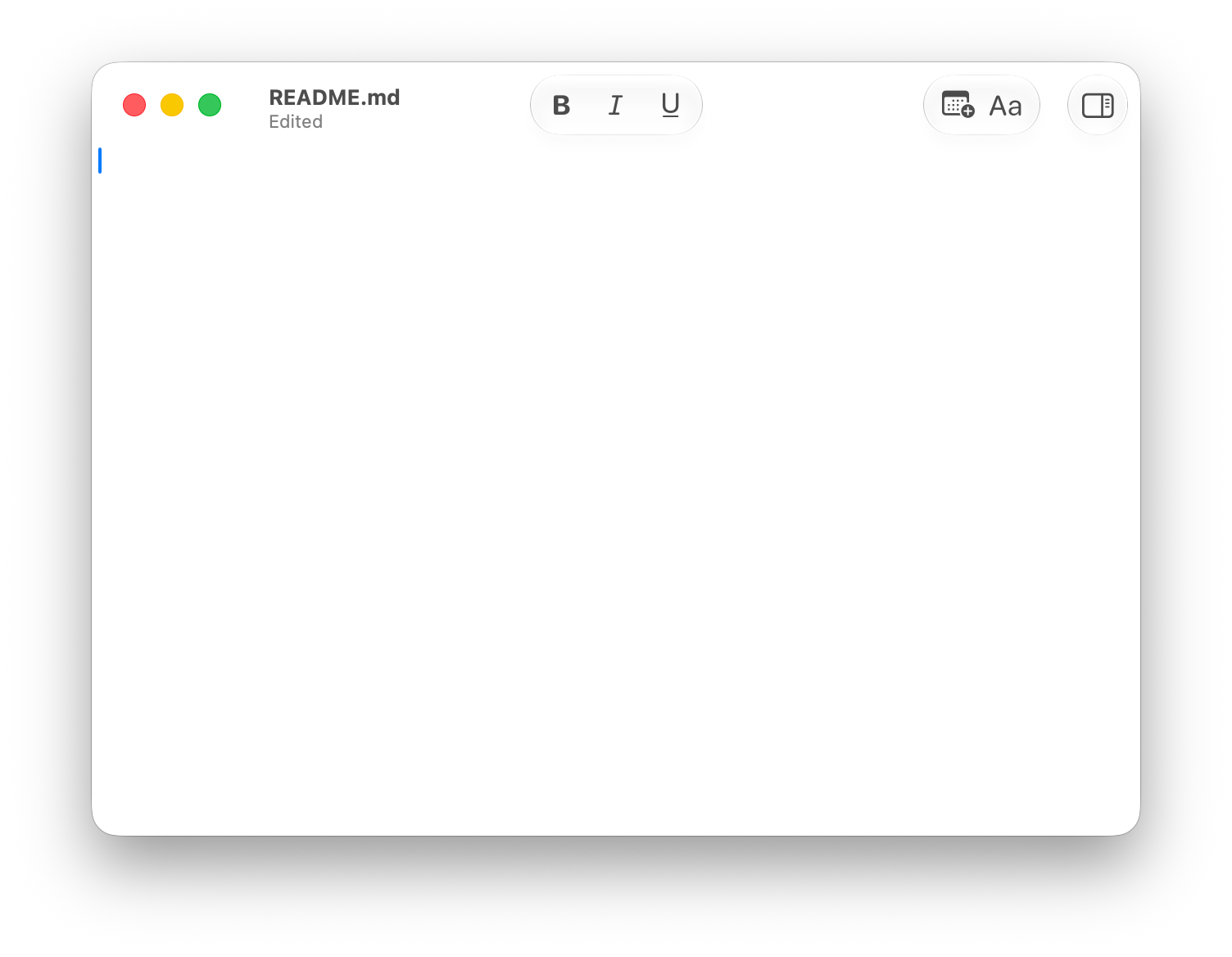
As you’ve certainly guessed, ToolbarItemGroup lets the system render a set of related controls as a toolbar group. For example, on macOS 26 and later, they will be grouped into a single glass surface.
At this point, our toolbar works just fine but is not customizable. At first glance, the migration seems obvious. SwiftUI has another toolbar overload:
.toolbar(id: "document") {
    ToolbarItem(id: "share") {
        ShareButton()
    }
}
The toolbar id creates a stable customization domain, and each item id gives the framework something stable to persist when the user adds, removes, or reorders controls. This identifiability of toolbar items is a requirement for customization. Under the hood, when SwiftUI inevitably bridges your toolbar contents to NSToolbar, these identifiers will be directly translated to the NSToolbarItem’s itemIdentifiers.
As we continue the migration to a customizable toolbar, we are likely to encounter a few surprises related to this model.
Two Toolbar Models
When you’re building a regular (non-customizable) toolbar in SwiftUI, your contents must conform to ToolbarContent, which is easy enough, since both ToolbarItem and ToolbarItemGroup, among a few others, conform to it. Once you switch to using toolbar(id:) as your toolbar modifier to add customization support, the requirement becomes stricter.
The customizable toolbar overload now requires CustomizableToolbarContent:
func toolbar<Content>(
    id: String,
    @ToolbarContentBuilder content: () -> Content
) -> some View where Content: CustomizableToolbarContent
This protocol is how SwiftUI imposes the stricter requirements on your toolbar items, such as identifiability. A ToolbarItem initialized with an id participates in this model:
ToolbarItem(id: "share", placement: .primaryAction) {
    ShareButton()
}
ToolbarItemGroup, however, does not. It is ToolbarContent, but it is not CustomizableToolbarContent.
So the most obvious version of the code above does not compile:
.toolbar(id: "document") {
    ToolbarItemGroup(placement: .status) {
        Button("Bold", systemImage: "bold") { ... }
        Button("Italic", systemImage: "italic") { ... }
    }
}
The compiler error is the important part:
Return type of property 'body' requires that 'some ToolbarContent' conform to 'CustomizableToolbarContent'
After a closer inspection, and perhaps a few minutes of digging through the documentation, we come to the bleak realization: there is no customizable ToolbarItemGroup API.
The regular toolbar model and the customizable toolbar model overlap, but they are not interchangeable. You cannot give a ToolbarItemGroup an id, and you cannot place one directly inside toolbar(id:content:).
How do we achieve grouping inside customizable toolbars then? Especially on macOS 26 and later, having a separate glass effect view underneath each neighboring item can look quite distracting. Similarly, if we just flatten the list, we’ll unintentionally cluster all the items.
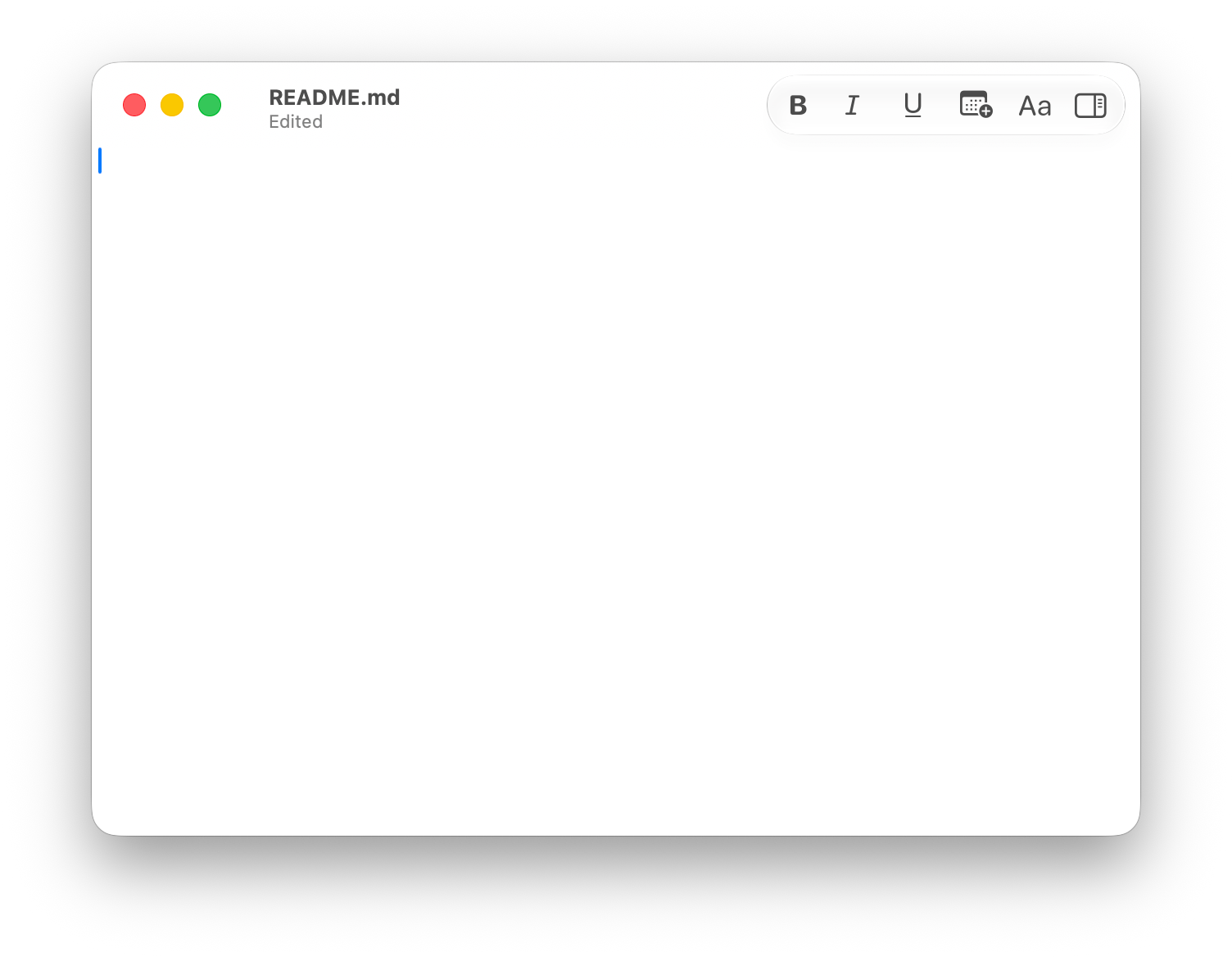
The answer lies in an API shape that is more similar to how you might think about constructing an NSToolbar in an AppKit app. That, however, requires a significant departure from how we may have thought about constructing toolbars in SwiftUI.
While it is easy to be prescriptive and tell you exactly how to convert your toolbars to be customizable, I personally often find that experimentation often leads to a better understanding of how things actually work. So, let’s uncover the “why” behind the “how” by exploring a few tempting options that may seem suitable at first glance.
The `ControlGroup` Detour
If you go looking through the SwiftUI documentation, ControlGroup may seem like a promising path. Apple’s docs show this exact pattern:
.toolbar(id: "items") {
    ToolbarItem(id: "media") {
        ControlGroup {
            MediaButton()
            ChartButton()
            GraphButton()
        } label: {
            Label("Plus", systemImage: "plus")
        }
    }
}
A ToolbarItem(id:) is customizable, and its content can be a ControlGroup – or any View, for that matter. The label gives SwiftUI something to use when the item moves to overflow or appears in customization UI.
Here comes another blow, however: it is also not a drop-in replacement for ToolbarItemGroup.
In practice, an automatically styled ControlGroup inside a toolbar item can render as a set of detached controls instead of the grouped toolbar cluster you had before.
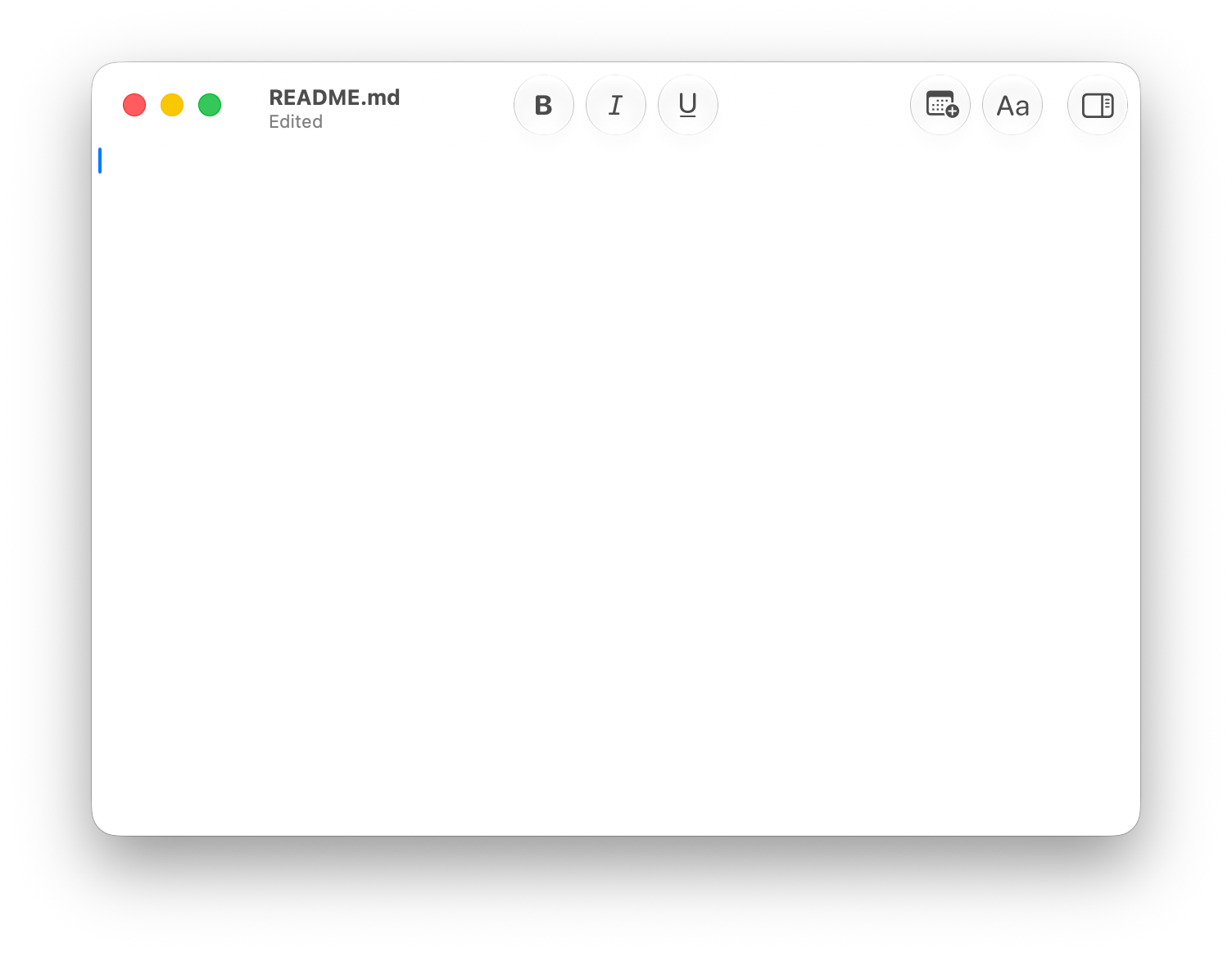
If you force .controlGroupStyle(.palette), SwiftUI may collapse the group into a pulldown.
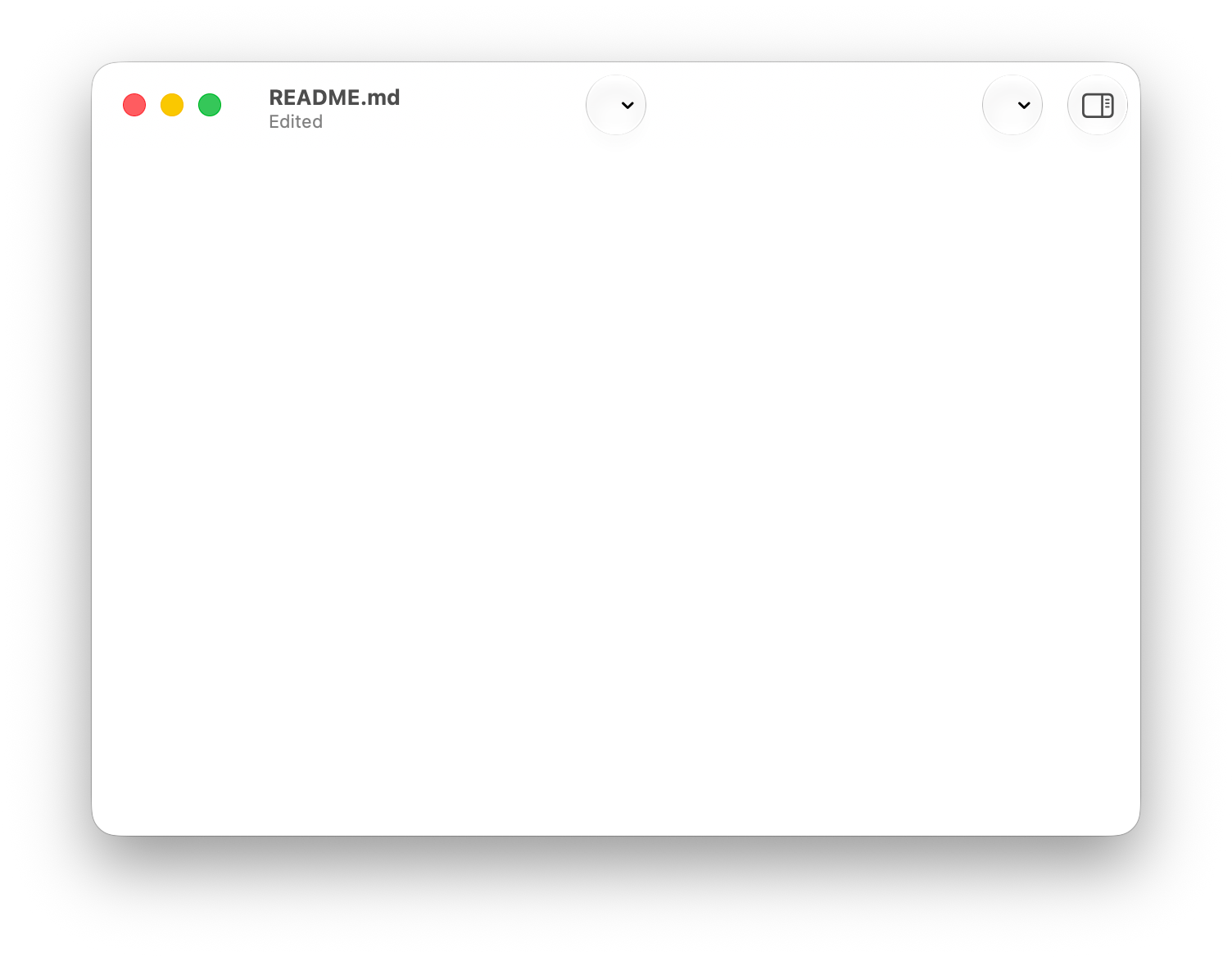
Both behaviors make sense in isolation. ControlGroup is a view that adapts to its context. It is not the same abstraction as ToolbarItemGroup, even though their names and use cases are adjacent.
This is one of the downsides of SwiftUI’s composability. Two APIs can mean similar things semantically without having the same platform behavior:
ToolbarItemGroupis a toolbar content primitive;ControlGroupis a view primitive.
The customizable toolbar API accepts the second one only when wrapped in a customizable ToolbarItem, but that does not mean it preserves the rendering semantics of the former.
One Big Customizable Item
Another tempting option is to keep the existing button cluster as a View and put that whole view inside a single customizable item:
.toolbar(id: "document") {
    ToolbarItem(id: "formatting", placement: .status) {
        FormattingToolbarItems()
    }
}
This compiles, and looks almost like what we want, which makes it tempting.
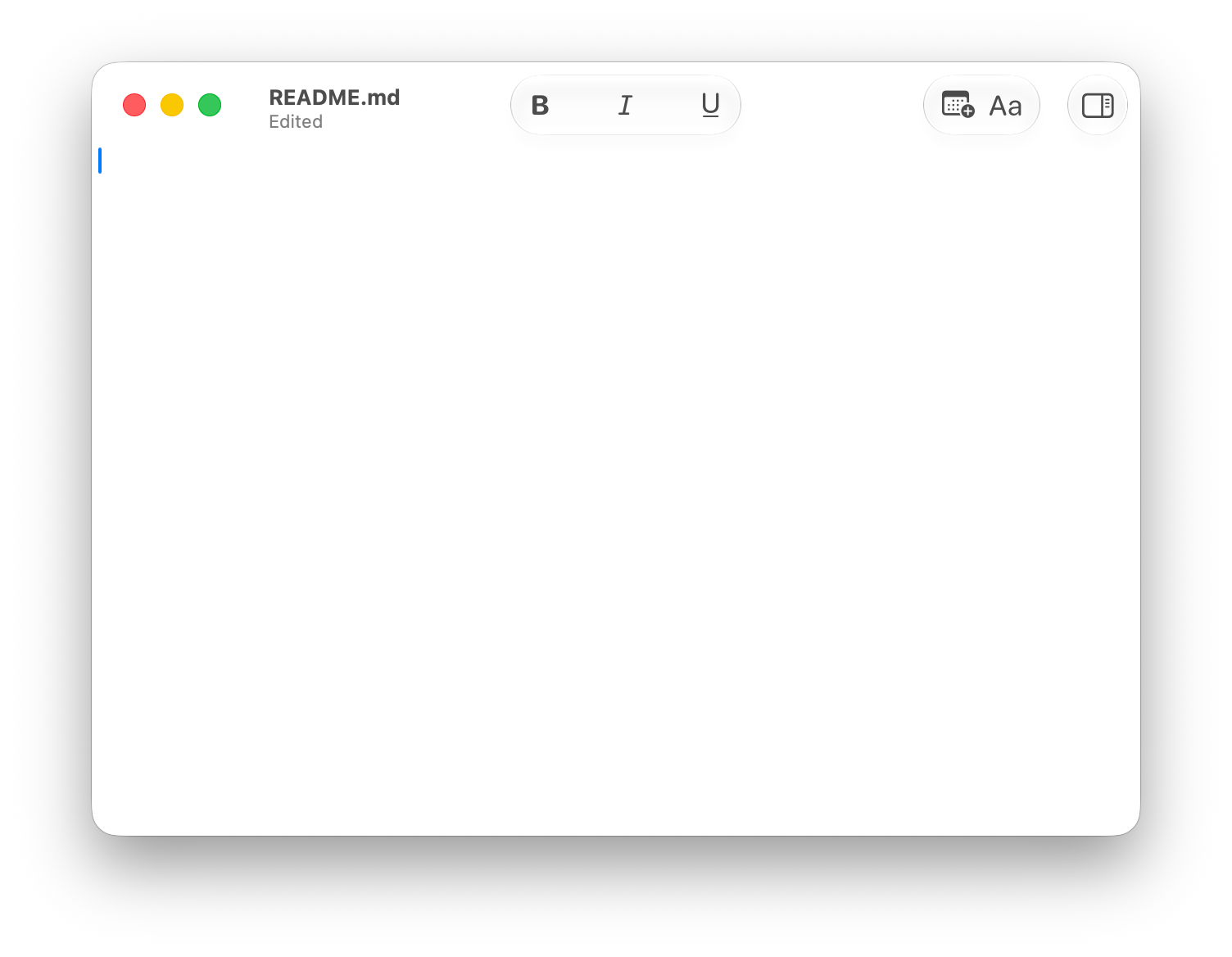
Unfortunately, it expresses the wrong intention to the customization system. From the framework’s point of view, there is one customizable item: formatting. The individual buttons inside it are not separately customizable toolbar items. Inside, you get buttons that look somewhat similar to toolbar items, but aren’t: they are just a single view.
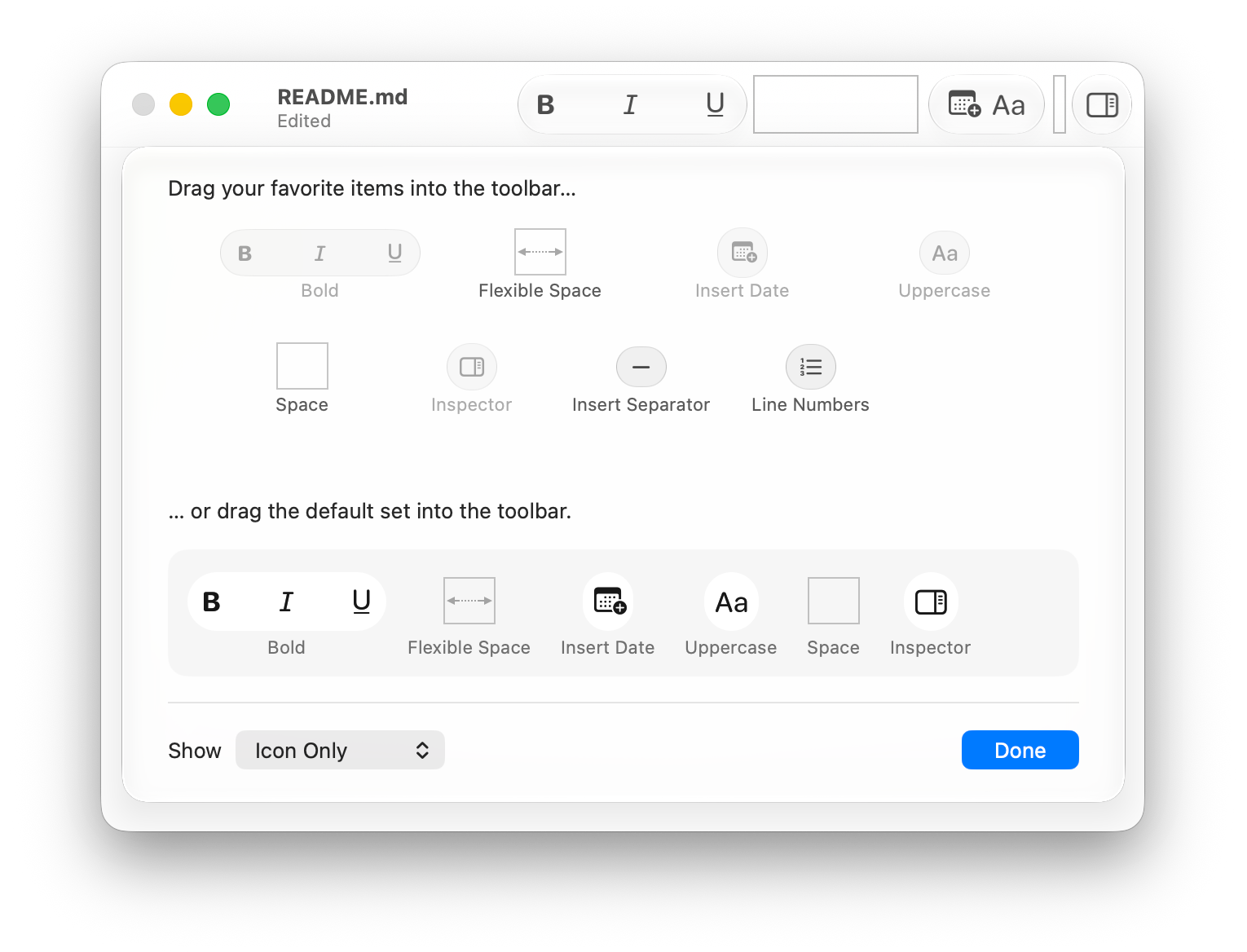
Putting multiple controls inside one customizable item makes that entire collection a single customization unit. That is occasionally useful, but it is not how you build a toolbar where individual commands can be added, removed, or rearranged. This yields another useful conclusion: if the user should be able to customize a button, that button needs to be its own ToolbarItem(id:).
The Fitting Shape
The approach that actually matches SwiftUI’s customizable toolbar model is less elegant or expressive, but more direct, and certainly more similar to NSToolbar you might be used to:
- Use one
.toolbar(id:)modifier for the customizable toolbar. - Give every customizable control its own
ToolbarItem(id:). - Use placement to put related items in the same region.
- Use
ToolbarSpaceras a separator where available. - Do not expect
ToolbarItemGroupsemantics insidetoolbar(id:).
For a formatting toolbar, that means writing the toolbar content more like this:
.toolbar(id: "document") {
    ToolbarItem(id: "formatBold", placement: .status) {
        FormatBoldToolbarButton()
    }

    ToolbarItem(id: "formatItalic", placement: .status) {
        FormatItalicToolbarButton()
    }

    ToolbarItem(id: "formatStrikethrough", placement: .status) {
        FormatStrikethroughToolbarButton()
    }

    ToolbarSpacer(.fixed)

    /// Any other items, grouped separately.
}
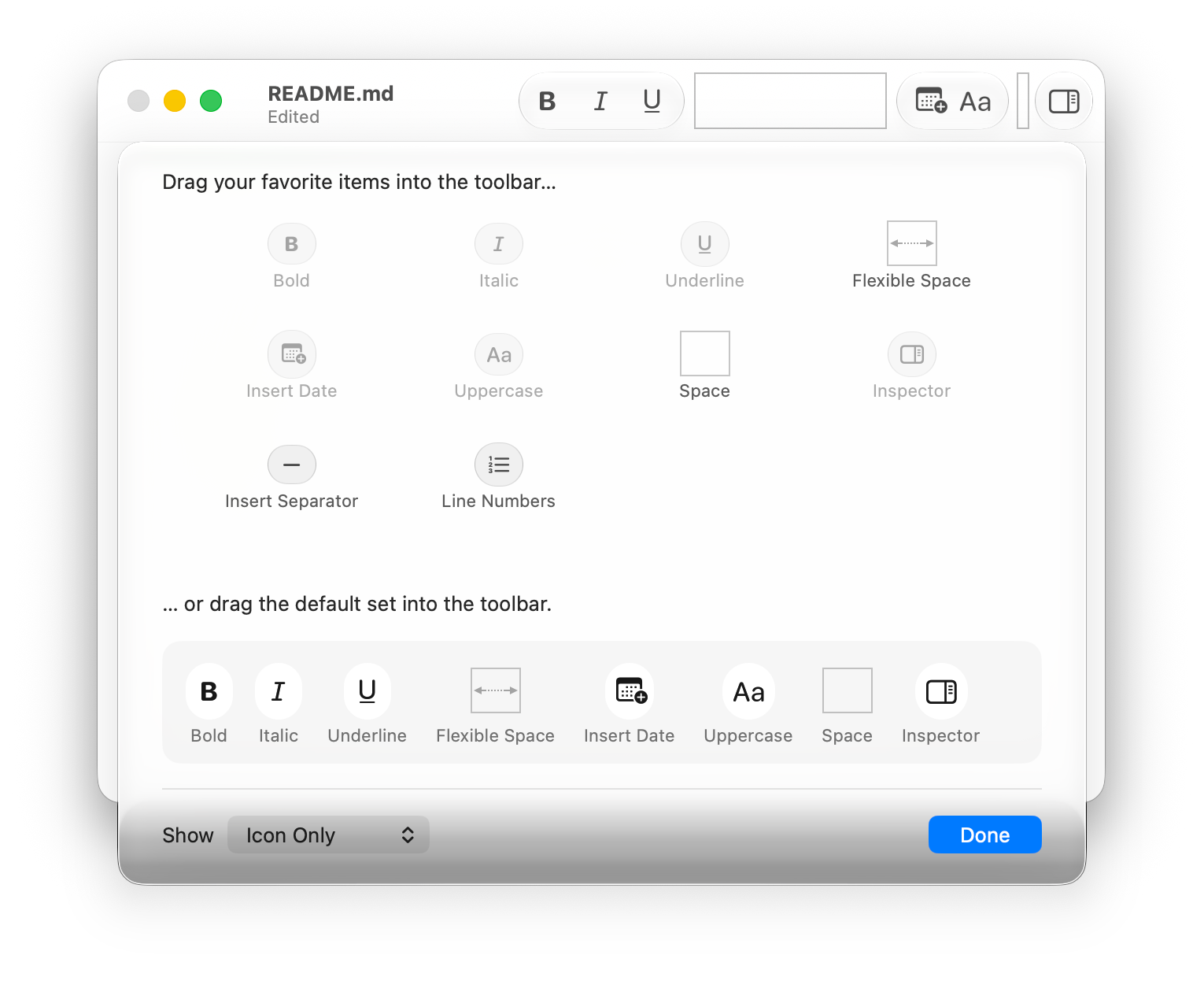
Note also that shared placement is not a grouping mechanism. It only influences where the system should try to put the item. Two items with the same placement are not a single customization unit, and SwiftUI does not draw any direct hierarchy conclusions from IDs like format.bold or format.italic.
ToolbarSpacer is the most suitable tool SwiftUI provides for expressing separation between logical groups in a customizable toolbar. Apple’s documentation shows it directly in a customizable toolbar:
.toolbar(id: "main-toolbar") {
    ToolbarItem(id: "tag") { TagButton() }
    ToolbarItem(id: "share") { ShareButton() }
    ToolbarSpacer(.fixed)
    ToolbarItem(id: "more") { MoreButton() }
}
The group is not modeled as a container, but rather as a run of independent toolbar items with a spacer between runs.
ToolbarSpacer is also customizable. Users can move or remove spacers, and the customization UI can offer additional spacers when a toolbar supports them.
Conclusion
The important conclusion is that SwiftUI has two toolbar models that look more similar than they actually are, especially for more complex applications.
For normal toolbars, ToolbarItemGroup is the right way to describe related controls that should render as a group.
For customizable toolbars, the real unit is ToolbarItem(id:). There is no shared group ID, and ToolbarItemGroup does not conform to CustomizableToolbarContent. To build a customizable toolbar, use a single .toolbar(id:), make every customizable item its own ToolbarItem(id:), and use ToolbarSpacer where available to separate logical groups.